
Create a scrape recipe from the dashboard
Paste a URL into the dashboard's 'New scrape' page and Simplescraper loads the page and finds every list on it. Then choose the list you want, name the fields, and download the data or save it as a repeatable scrape recipe.
When to use it
Use the dashboard when:
- The data is public: the page opens without a login.
- The data is in a list: jobs, products, listings or search results.
- The list runs over several pages: behind a 'Next' or 'Load more' button.
- You want a few values from one page: a product's name, price and rating.
When the extension is better
The dashboard works from a copy of the page, so it cannot log in or scroll to load more items. For a page behind a login, an infinite scroll page or a page that doesn't load in the dashboard, use the Chrome extension.
Create the recipe
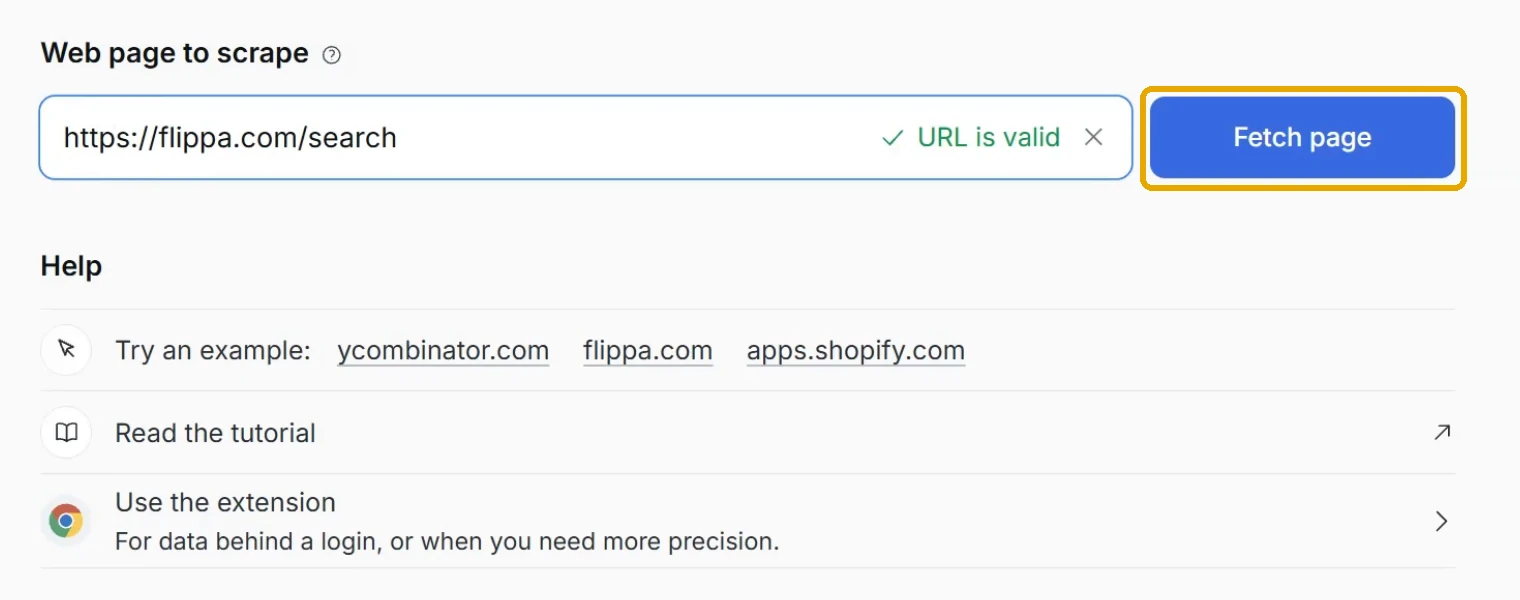
1. Fetch the page
- In the sidebar of the dashboard, click 'New scrape'.
- Paste the address into 'Web page to scrape'.
- Click 'Fetch page'.
2. Choose the list
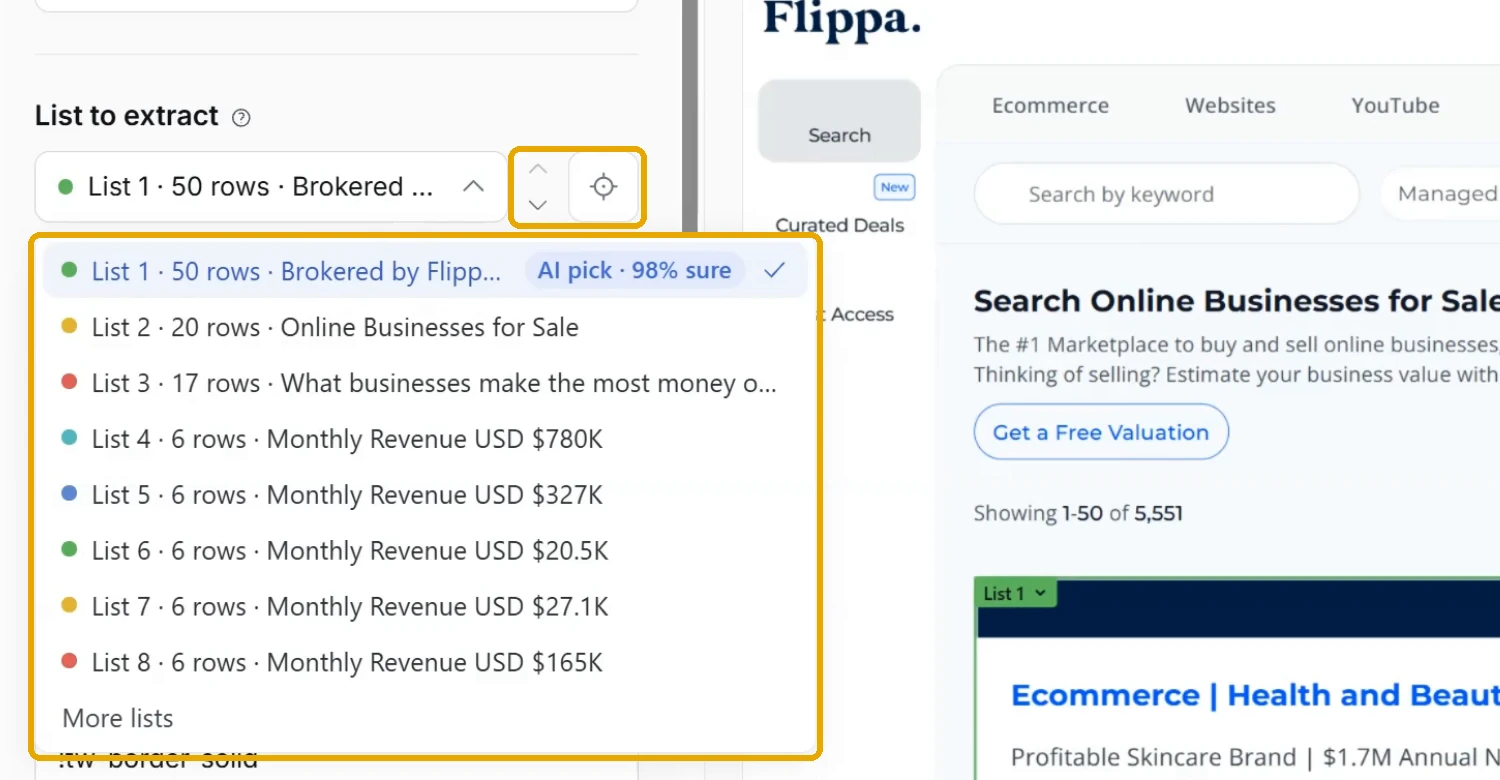
In the left sidebar, 'List to extract' holds the lists found on the page. AI recommends the most likely pick, but you can choose a different list:
- From the menu: open 'List to extract' and click a list. 'More lists' shows the rest.
- With the arrows: click the up and down arrows beside the menu to step through the lists.
- On the page: click the target beside the menu, then click any item in the list you want.
If the list repeats under several headings, such as jobs grouped by department, tick 'Include similar lists' to take the rows from every heading.
If you see 'No list was found automatically.', click 'Click the list on the page' and click any item in the list.
Scraping a single record
To scrape one record instead of a list, such as a single product page, click 'Extract fields', click the target above the page and click each value you want. Each click adds a field. Press Esc to stop selecting.
3. Choose how many pages
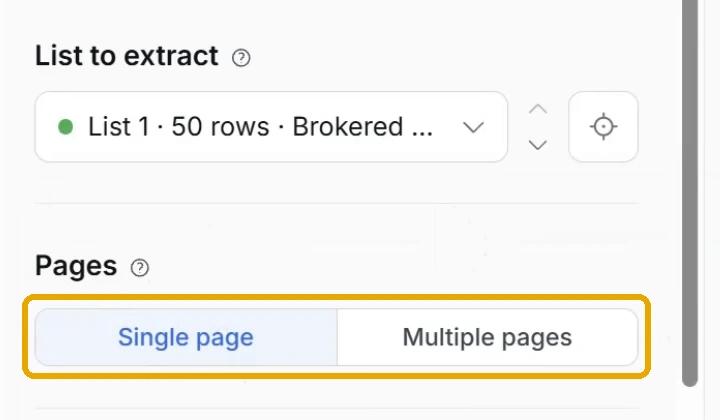
Under 'Pages', choose how far a run goes:
- Single page: scrapes what the page shows when it loads.
- Multiple pages: clicks a 'Next' or 'Load more' button to reach more items.
For 'Multiple pages':
- Under 'Button type', choose 'Next page' or 'Load more'.
- Check the button Simplescraper selected, which is outlined on the page. If it is the wrong one, click 'Select on page' and click the right button.
- Set 'Pages to scrape', or 'Load more clicks' for a 'Load more' button, from 2 to 100.
A download from this screen holds the first page. A saved recipe clicks through the pages on every run.
4. Name the fields
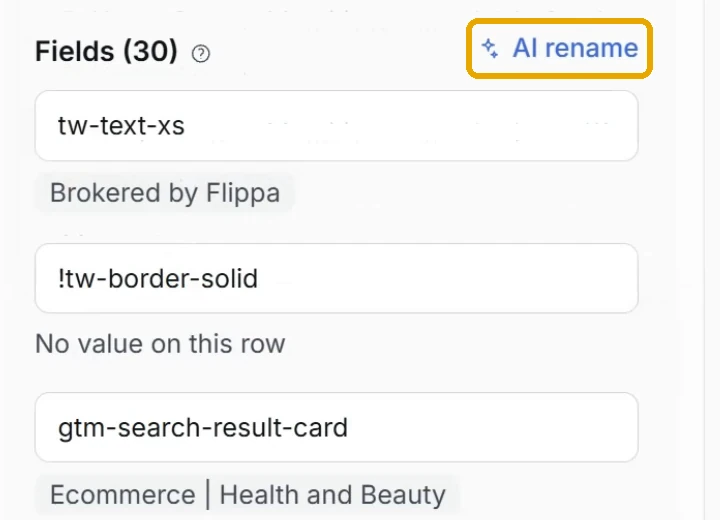
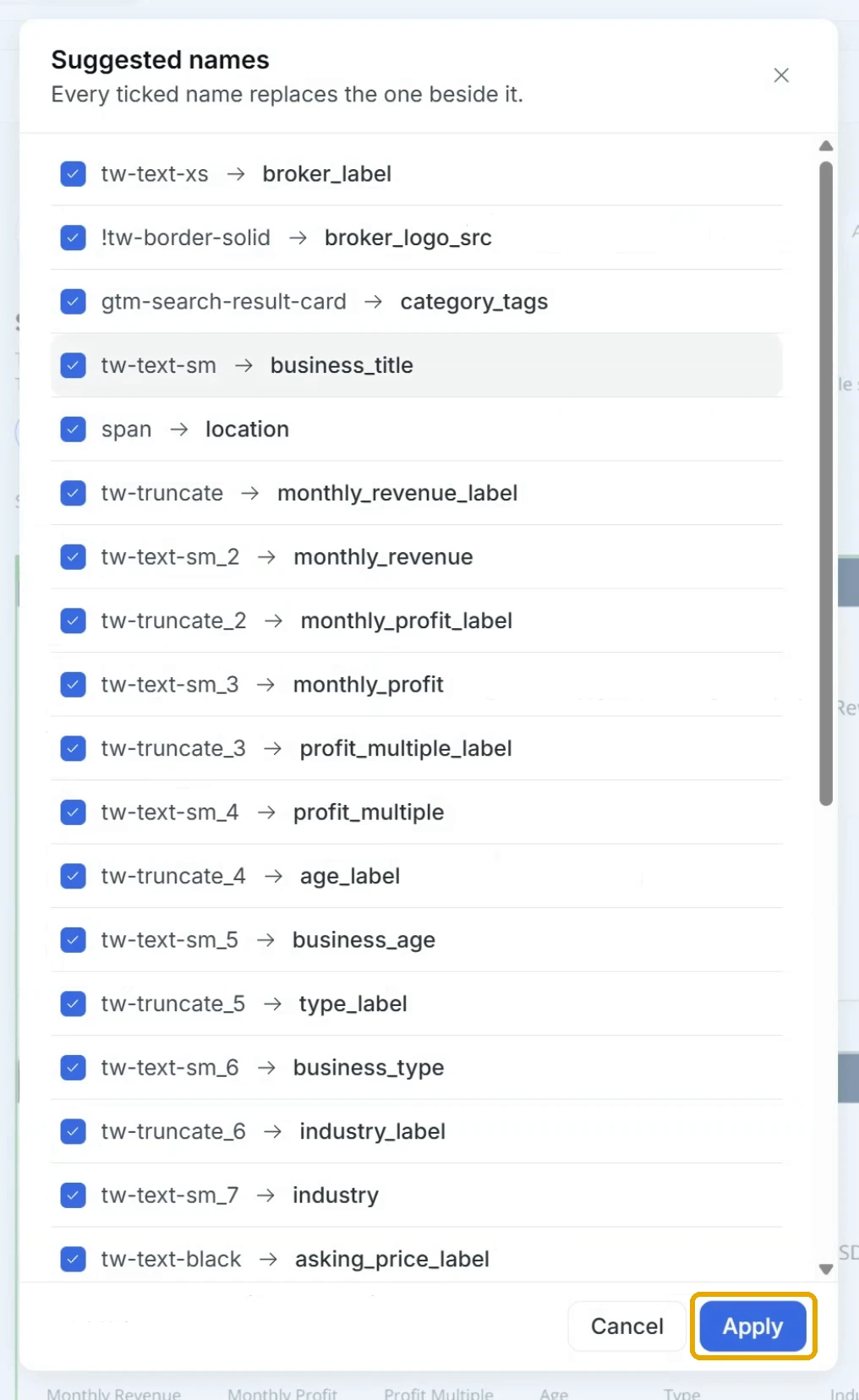
Each field under 'Fields' becomes a column and shows a value from the page.
- Rename every field with AI: click 'AI rename', review the names under 'Suggested names', untick any you want to keep and click 'Apply'.
- Rename one field: type over its name.
- Remove a field: click the X at the end of it.
On the right-hand side, 'Table preview' shows all of the rows that will be extracted. Drag its edge to widen it and preview the data.
5. Download the data or save the recipe
- Check the name under 'Recipe name', which is filled in from the site.
- Choose what to do with the data:
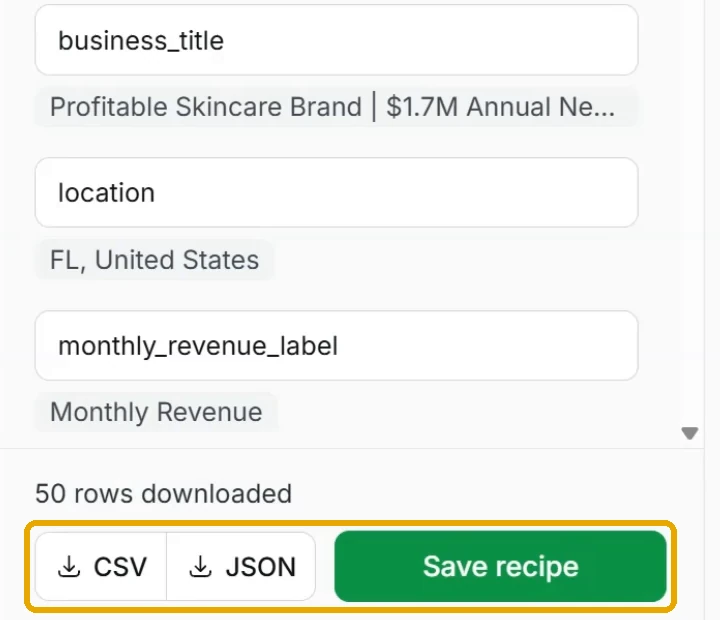
- CSV or JSON: click 'CSV' or 'JSON' to download the rows now.
- Save recipe: click 'Save recipe' to keep it as a scrape recipe. You can now run the recipe anytime, on a schedule or in bulk from the dashboard.
If the page doesn't load
Sometimes the page may not load correctly or may take a few moments to load. Try this:
- Give the page more time: click 'Fetch again' above the page and choose 'Wait 10 seconds and fetch again'. A recipe saved from that copy keeps the longer wait on every run.
- See what was loaded: click 'View screenshot' for a picture of the page as Simplescraper saw it.
- Get help: click 'Need help scraping this page?' to scrape with the extension, fetch again or contact support.
More Guides
- What is cloud scraping - run the recipe you saved and manage it from the dashboard
- Scheduling your web scraping - run it every hour, day or week
- Bulk scraping in the cloud - run it over a list of URLs
For questions or help, reach out via chat.